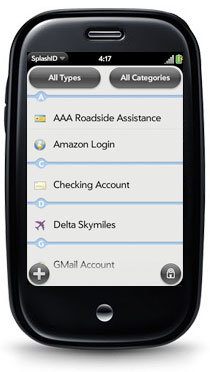
SplashID FAQ Is there any way to sync with the SplashID Desktop? No, there is no way to synchronize with the SplashID Desktop at this time. We plan on offering a sync solution in a future update, but we cannot provide a timeline for that project yet. You can use the SplashID Desktop to manage your data and export VID files to be imported on the handheld. Note: You will need to export a version 4 file from version 4 SplashID Desktop or later. How do I import my data from the SplashID Desktop? Please follow these steps to transfer data from the SplashID Desktop to the WebOS version. Note: You will need to export a version 4 file from version 4 SplashID Desktop or later.
If you need to do another import (eg. after updating your desktop database), use the Delete All Records command from the SplashID menu. Then import your new file. I've previously owned SplashID. Do I need a new registration code? How much do crossgrades cost? SplashID for webOS handhelds is sold exclusively on the Palm App Catalog. As there is no SplashID Desktop for webOS yet, you can continue using the version you have to export VID files until we have a complete solution avaialable. How do I delete a single record? To delete a single record, swipe from left to right with your finger over the item you wish to delete and it will reveal a delete button for it. You can delete all records at once by going to SplashID > Delete All Records. This is useful for clearing out the data before importing a new VID file. How do I backup and restore my data? Tap the SplashID menu and select Backup. An email will be generated containing an encrypted text version of your SplashID records. Send this email to yourself as a backup. To restore the data, open the backup email, either from Sent items or in your Inbox if you sent it to yourself. From the menu items, choose Edit > Select All. Then select Edit > Copy from the menu items. Then switch to SplashID and choose Restore from the SplashID menu items. Then paste your encrypted data into the space provided by selecting Edit > Paste from the menu items. The tap Restore. Please note that the password must be the same on the new database as it was at the time you made the backup. If you wish to overwrite the current records, use the
Delete All Records menu option before performing the How do I send my data to the SplashID Desktop? You can email a CSV file to yourself so you can import it into the SplashID Desktop. Please note that this is Not Encrypted, and email is not the most secure channel to send data, but it is currently the best option to get data from the handheld to the SplashID Desktop. To use this feature:
|
||||||||
SplashData has been a leading provider of security applications and services for over 10 years. The company's secure password and record management solution SplashID Safe has over 1 million individual users worldwide as well as hundreds of business and enterprise clients. SplashData was founded in 2000 and is based in Los Gatos, CA.
SplashData, Inc.
155 N Santa Cruz Ave, Suite E-210
Los Gatos, CA 95030