 |
SplashID for BlackBerry
User Guide
|
SplashID provides quick and easy access to all of your sensitive personal
identification information, including usernames, passwords, credit
cards, PINs, calling card numbers, frequent flyer numbers, insurance
info and more. Data is stored in a secure, encrypted, password protected
format and can be synchronized between SplashID on your BlackBerry
and SplashID on your desktop computer.
SplashID on the phone and SplashID Desktop are virtually identical.
This user guide focuses on the features in SplashID on the phone. You
may prefer to do most of your data entry in SplashID Desktop, however,
since it's faster and easier with a keyboard, and then perform a Sync
operation to synchronize the data with your phone.
Note: If you are upgrading to SplashID
5 from a previous version, you need to follow the upgrade instructions in the next section.
Connect your phone to your desktop computer. Run the Installer and
follow the on screen instructions. The installer installs the following
files:
- SplashID.alx and SplashID.cod -- The application used to
view and edit information on the phone.
- SplashID Desktop -- A desktop application used to view and
edit information on the desktop.
- SDPlatformMgr.dll and SID_BB_SyncProvider.dll --
Extensions for the Desktop application.
- SplashID User Guide -- This User Guide.
- Various Installation files
To complete installation, connect your BlackBerry to your desktop
as you normally do to sync.
- Launch the BlackBerry Desktop and double-click
the Application Loader.
- Click the Add button and browse to select this file:
c:\Program
Files\SplashData\SplashID BlackBerry\SplashID.alx
- Scroll down through the list of programs and check the box at the
bottom for SplashID to be installed.
- Click Next and SplashID will be installed on the device.
- On your handheld, find the SplashID application and launch. It
may be found in the Applications folder.
Upgrade Instructions
Upgrading from version 4.x:
If you are upgrading from SplashID 4 to SplashID 5, the desktop data
will be imported automatically. You will need to delete SplashID 4
from the BlackBerry before installing SplashID 5 on the device. Follow
these steps:
- Remove the old SplashID application from the BlackBerry, and install
the new version:
- Open the BlackBerry Desktop Manager, and launch the Application
Loader.
- Uncheck SplashID from the list, then click Next. SplashID will
be removed, and the BlackBerry will restart.
- After the BlackBerry has restarted, launch the Application
Loader again.
- Check the box next to SplashID on the list, then click Next.
This will install SplashID 5 on the handheld.
- After you get SplashID 5 installed on the BlackBerry, run it once,
and set the password the same as the SplashID desktop password, if
any.
- Run the SplashID desktop, choose Wi-Fi or USB for the sync method.
Follow the instructions to synchronize.
Upgrading from version 3.x:
If you are upgrading to SplashID
5.x from SplashID 3.x, please follow these steps to import your data.
- Remove the old SplashID application from the BlackBerry, and install
the new version:
- Open the BlackBerry Desktop Manager, and launch the Application
Loader.
- Uncheck SplashID from the list, then click Next. SplashID will
be removed, and the BlackBerry will restart.
- After the BlackBerry has restarted, launch the Application
Loader again.
- Check the box next to SplashID on the list, then click Next.
This will install SplashID 5 on the handheld.
- After you get SplashID 5 installed on the BlackBerry, run it once,
and set a password if you wish.
- Run the SplashID desktop, choose Wi-Fi or USB for the sync method.
Follow the instructions to synchronize.
- It will
not recognize the old "Default User" since it now supports
multiple BlackBerry device PINs.
- Verify that the correct BlackBerry device PIN is displayed in the
title bar of the SplashID desktop. You can check this against the
PIN displayed in the bottom of the BlackBerry Desktop Manager window
when your device is connected.
- Find the backup file for your old SplashID data in this location:
- <user>\Documents\SplashData\SplashID\Backup\SplashID-DefaultUser.vid
- Double click the file to import it into the SplashID desktop. If
a password is required, this will be the same as the one you used
previously with SplashID. You should now see your data in the desktop
application.
When you launch SplashID you will be prompted to enter a registration
code or to run in Trial mode. You may run the software for 30-days in
full-functioning Trial mode. The Trial software and Registered software
are identical. Once the trial period ends you must purchase and enter
a registration code to continue using the software. You do not need
to re-install the software. Simply enter a registration code and your
Trial version will be converted into a Registered version and all your
data will remain intact. The registration code must be entered
in both the desktop application and the phone application.
If you owned a previous version, you can upgrade for $10. Just click
the Purchase button in the registration dialog, then select the Upgrade
option, enter your registration code and click Validate. Then proceed
with the checkout via PayPal or Credit Card, or use our website.
Quick Start
- When you first launch SplashID, you will see the Getting Started
wizard. It will take you through the basic functionality in 3 quick
steps.
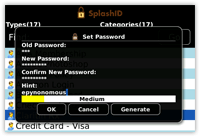
- After the wizard completes. you will land on the Set
Password screen. You can check the box to set no password if
you wish, and you can set a hint to remind you.
- Launch SplashID and the List View will
be displayed with several sample records. You can also select the Tree
View button to view your records in a tree format.
- Select Add Item from the menu options to create a new record. In
the Edit
Dialog select
a Type, such as Credit Card or Web Login,
and you will see the Field Labels change
accordingly.
- Select Done from the menu when you are finished entering the information
for the new record and you are returned to the List View.
- You can create records on the handheld or the desktop and synchronize
the data between the two, via USB or Wi-Fi. You will find it easier
to enter data in SplashID
Desktop where you can use your keyboard.
|
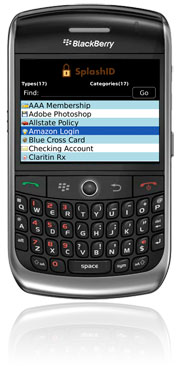
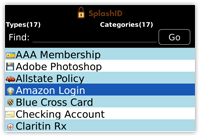
When you launch SplashID you are presented with the List View,
which displays a list of your items. Items are records of information,
like a credit card number and expiration date; or a website username
and password.
Enter text by which
you wish to search from anywhere in the list, and press enter
to display records containing that text. Delete the text in the
find field to display all records.
Select the Type or Category pickers, then click and scroll
to change the option to filter by a Type or Category.
The column labels will change according to the selected Type.
List View Menu
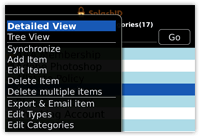
Press the BlackBerry menu button in the List view
to access the following commands:
List View |
- Detailed View -- Opens the Detailed
View for the selected record.
- Tree View -- Switches to the Tree
View display.
- Synchronize -- Initiate a Wi-Fi
sync with the desktop.
- Find Item -- Moves the cursor to the
Find field.
- Add Item -- Creates a new record.
- Edit Item -- Edits the selected record.
- Delete Item -- Deletes the selected
record.
- Delete Multiple Items -- Allows you
to select multiple/all items for deletion. This is a handy
way to delete the sample records.
- Export & Email Item - Export a secured
vID file to be sent via email.
- Preferences -- Opens the Preferences dialog, where
you can select the font, row color, which columns are displayed,
which column is sorted on, and security
preferences.
- Edit Types -- Displays the Edit Types
dialog. See more about Types.
- Edit Categories -- Displays the Edit
Categories dialog. See more about Categories.
- Set Password -- Select Set Password to password
protect SplashID. See Security for
more information.
- Mask/Unmask -- Shows or hides the data
in a masked field. You can also
press the "*" key to mask/unmask fields.
|
List View Menu Options |
- Lock Now -- Locks SplashID immediately and requires
a password to open the data again. See Security for
more information. You can also press the "#"
key to Lock Now.
- Getting Started -- Opens the Getting
Started guide for beginners.
- About SplashID -- Displays the version
and registration code.
- Close -- Closes the SplashID application.
|
Tree View
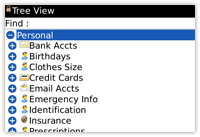
Tree View |
Tree View is similar to List
View except that instead of Filter menus at the top of the
screen, you use branches on the tree to filter by Categories
and Types.
Select a Category and click to expand, then select a Type
and click to Expand. Click on an item to view and/or edit
it. |
|
Select an item in the List View using the scroll wheel to view its
details in the Detail View. Each item can contain up to 9 user fields,
the Date Modified field, an icon, an attachment, plus additional notes.
Up and down on the scroll wheel or track ball will page through your
records. The Escape button will go back to the List View.
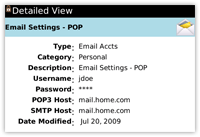
Detail View |
Any notes will be compressed into a single line preview -- to
view the Notes, select View Notes from the menu options.
Display the Detail View menu options by pressing the Tools key on the right. These options will
appear:
- List View/Tree View -- Returns to the previous
view.
- View Notes -- If notes are present, this will open the Notes
viewer.
- Add Item -- Creates a new record.
- Edit Item -- Select to edit the displayed
record.
- Delete Item -- Deletes the displayed record.
- Font -- Opens a font selector dialog, so you can increase
the text size in this view.
- Set Password -- Select Set Password to password protect
SplashID. See Security for more information.
- Mask/Unmask -- Shows or hides the data
in a masked field. You can also press
the "*" key to mask/unmask fields.
- Lock Now -- Locks SplashID immediately and requires
a password to open the data again. See Security for
more information. You can also press the "#"
key to Lock Now.
- About SplashID -- Displays the version and
registration code.
|
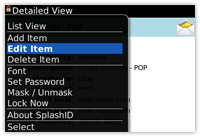
Detail View Options |
Edit View
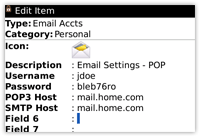
Select New Record or Edit Record from the menu options. You will find
the following in the Edit View:
- Type -- Select the Type
of record and you will see the field labels change accordingly.
- Category -- Select the Category
to which you want the record to belong, such as Business or Personal.
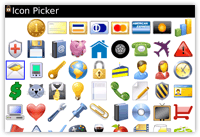
- Icon Picker -- Click on the icon to open the icon
picker and customize the icon for this record.
- Field Data -- Enter the data for up to 9 fields,
and additional Notes if needed.
- Date Modified -- This field is not editable and
displays the date the record was last changed, which is useful for
evaluating how fresh passwords are and comparing duplicate records.
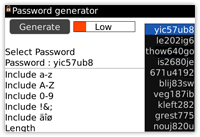
Automatic Password Generator
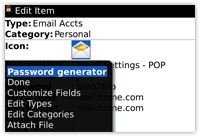
To display the Automatic Password Generator in Edit
View, select Password Generator from the menu options
when you have a field selected. To create a password:
|
- Select one or more options of letters, numbers, symbols,
or a combination thereof.
- Set the Length.
- Set the pronounceable setting.
- The strength meter at the top will go up if you select
longer, more complex password criteria.
- Select Generate by
selecting Generate from the menu.
- 10 passwords will be generated, and you can select
one you like using the nav ball (or wheel).
- Select Generate again
to get additional results.
- Select Done from the menu when you have decided.
|
|
Types and Categories
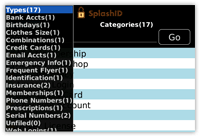
Types 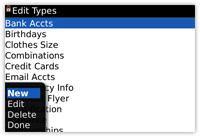
Edit Types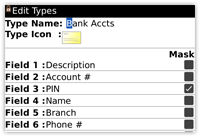
Edit Types Dialog |
The difference between Categories and Types is best illustrated
by example. You may use Categories to separate your Business
records from your Personal records, while you use Types
to separate your Credit Card records from your Web Login
records.
Categories act as filters for grouping related records.
The two pre-defined Categories are Business and Personal,
though you may add more by choosing Edit Categories from
the Category menu.
Types act as templates, which define the structure for
the items you want to store in SplashID. You may define
up to 9 custom field labels and a default icon for each
type, as well as specify the fields you wish to mask.
For example, you may create a type for Web Logins, which
includes custom field labels for username, password and
URL, with a globe icon, and the password field masked;
and you may create a Type for Credit Cards which includes
custom field labels for credit card number, expiration
date and PIN, with a Visa icon, and the credit card number
and PIN masked.
Edit Types -- Select Edit Types from any
menu to display the Edit Types dialog. You may create an
unlimited number of Types. Several sample Types are provided,
which you may edit or delete. Select an existing type,
press the scroll wheel and select Edit, or select New to
create a new one. The Define type dialog is displayed.
Define
Type -- Enter the details for a Type:
- Type -- Enter a name for the Type.
- Field Labels -- Enter the field label names.
- Icon -- Choose a default Icon to be associated with
the Type.
- Mask -- Select Masked or Unmasked
after each field label.
|
|
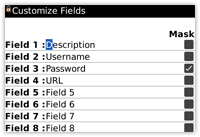
Custom Field Labels
|
When you create a record, the field labels
and mask settings are defined by its Type.
You may change the Field Labels and masking, however, on
a record by record basis by selecting Customize Fields
from the menu options in the Edit View. |
|
Masking
|
Fields that are Masked appear as four asterisks
(****). You may show or hide the masked data by selecting
Mask/Unmask data from the menu options, or by pressing the
"*" key on the keypad.
If you wish to permanently mask or unmask a field for a
given Type, you can change its mask setting in the Edit
Type dialog.
If you wish to change the mask settings for the given record,
you can do this in the Custom Field
Labels dialog. |
|
You can secure your data in SplashID so that a password must be entered
to access the application. You will be required to enter the password
when launching SplashID, or when waking your BlackBerry if SplashID
was last running when it went to sleep. Once you set a password, SplashID
encrypts your data using Blowfish encryption to ensure data security.
- Setting a Password -- To set a password, select Set Password
from the menu options in the List View, Tree View or Detail View.
The Set Password dialog is displayed. Enter a password in the New
Password field, and verify the password by entering it again in the
Confirm field. You can enter a hint to remind you of your password
if you forget. You can also use the password generator tool in this
dialog, but keep in mind that these are generally strong passwords
and difficult to remember. Note:
You must manually set the same SplashID password on the phone and
the desktop, if you wish to synchronize between the two.
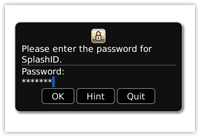
- Entering a Password -- You will be required to enter your
password each time you launch SplashID, or when you next use your
phone if SplashID was last running when it became idle. Select the
Hint button to display the hint you set.
- Changing a Password -- To change a password, select Password
from the menu options, enter your Old Password, then enter and confirm
the New Password.
- Removing a Password -- To remove a password, select Set Password
from the menu options, enter your Old Password, then leave the New
Password and Confirm fields blank.
Security Options -- Choose Preferences from the
menu options to specify the period of time that must elapse before
SplashID auto-locks. Once SplashID locks, you must enter your password
to open SplashID. There are two settings for the Security Options:
- Lock when idle -- When the phone becomes
idle, SplashID will lock immediately by default.
- Lock in background -- If you switch to another
application, SplashID will lock immediately by default.
If you wish, you may specify a longer delay, at the risk of less
security. If you have specified a longer delay (e.g., 10 minutes)
but then desire to lock SplashID immediately, you may select Lock
Now from the menu options (or press the "#" key)
When you first launch SplashID, you will see the SplashID Setup wizard.
You can choose to sync via USB as in previous versions, or via Wi-Fi
if your device has Wi-Fi and you have a Wi-Fi network to connect both
your computer and BlackBerry. Wi-Fi sync will help you connect to your
handheld in 3 quick steps:
- Ensure that your handheld and desktop are using the same local
network connection and launch SplashID on the device.
- On the handheld version of SplashID, click Sync, then the desktop
name you wish to sync with.
- Click Finish, and then enter the same password that you set on
the handheld to login and begin viewing and editing your data.
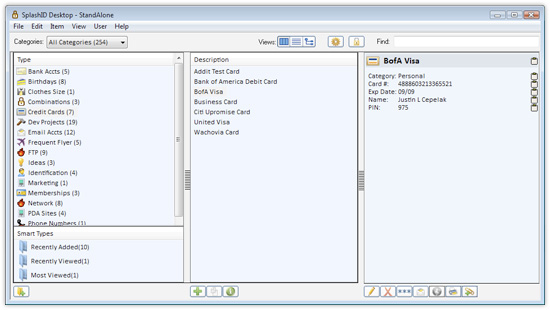
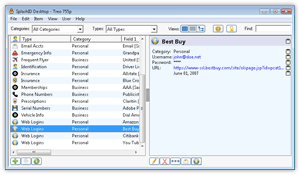
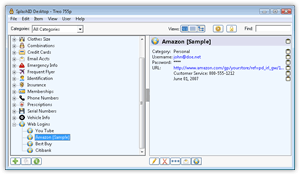
When you launch SplashID you are presented with the Panel View, which
displays a list of your items in a 3-panel layout. Items are records
of information, like a credit card number and expiration date; or a
username and password for a web-site. There are two other useful views,
List View and Tree View, which you can select with the view buttons
toward the top of the window.
Panel View |
List View
|
Tree View |
SplashID Desktop has some great features:
- 3 Record Views -- Use the View buttons to select
from the traditional List View, or the new Panel and Tree Views.
Select a record from the List to display the details in the Detail
Pane on the right.
- Smart Types -- New in SplashID 5, the Panel View
has a small mini-panel at the bottom left which displays 10 of each
of the following Smart Types: Most Viewed, Recently Modified, and
Recently Viewed. These are similar to Smart Playlists in iTunes.
- Attach Files -- Attach any file to the record
for future reference. Attached files are saved in a folder next to
the database.
- Web Auto-Fill -- For Web Logins, click the globe button
or right click and select Auto-Fill to open Safari to the selected
URL and fill in the login info with your data. See Web
Auto-Fill for more info. Or you may simply click on a URL or
email address in the preview pane to launch your web browser or email
client.
- Database Sync -- You may select multiple databases
to synchronize with on the desktop, so you can share data with other
users, even across a network. See Database Sync for
more info.
- Types -- Use the Type menu on the top left to filter the
view by type, such as Credit Cards or Web Logins. All Types are displayed
by default, but you may restrict the list to only display items assigned
to a specific Types (see Categories and Types).
- Categories -- Use the Category menu on the top right to
filter the view by Category, such as Business or Personal. All categories
are displayed by default, but you may restrict the list to only display
items assigned to a specific Category (see Categories
and Types).
- Sorting -- click the column header to sort by that column.
click again to reverse sort.
- Resize columns -- You may resize a column by dragging the
left/right edges of the column header.
- Mask -- click the Mask button
 to
show/hide masked fields. to
show/hide masked fields.
- Copy field -- You may click the clipboard icon
 next
to a field in the preview pane to copy that field to the clipboard.
You may then paste this field into another application (e.g., copying
and pasting the password field from SplashID into a web browser).
Note: You may also type Command-1 through Command-9 to copy fields
1 through 9 to the clipboard. next
to a field in the preview pane to copy that field to the clipboard.
You may then paste this field into another application (e.g., copying
and pasting the password field from SplashID into a web browser).
Note: You may also type Command-1 through Command-9 to copy fields
1 through 9 to the clipboard.
Buttons
There are buttons scattered around the SplashID Desktop window, situated
by proximity to where they are to be used:
 -- Views:
Switch between Panel View, List View, and Tree View, respectively. -- Views:
Switch between Panel View, List View, and Tree View, respectively.
|
 -- Options:
Opens the Options dialog (below). -- Options:
Opens the Options dialog (below).
|
 -- Lock
Now : Locks SplashID immediately and requires a password
to open the data again. -- Lock
Now : Locks SplashID immediately and requires a password
to open the data again.
|
 -- New
Type: Opens the Edit Type Dialog for a new Record
Type. Available in Panel View only. -- New
Type: Opens the Edit Type Dialog for a new Record
Type. Available in Panel View only.
|
 -- Duplicate
Record: Opens the Edit Record Dialog for a duplicate
of the selected record. -- Duplicate
Record: Opens the Edit Record Dialog for a duplicate
of the selected record.
|
 -- Show
Details : Shows or hides the Record Detail Pane. -- Show
Details : Shows or hides the Record Detail Pane.
|
 -- New
Record: Opens the Edit Record Dialog for a new record. -- New
Record: Opens the Edit Record Dialog for a new record.
|
 -- Edit
Record: Opens the Edit Dialog for the selected record.
You can also double click the record. -- Edit
Record: Opens the Edit Dialog for the selected record.
You can also double click the record.
|
 -- Delete
Record: Deletes the selected record. You can also
hit the Delete key. -- Delete
Record: Deletes the selected record. You can also
hit the Delete key.
|
-- Mask/Unmask:
Masks/Unmasks field data that has been specified as masked. See Masking. |
 -- Email
Records: Exports selected or all records to vID file,
then attaches it to a new email. -- Email
Records: Exports selected or all records to vID file,
then attaches it to a new email.
|
 -- Print:
Prints the selected record. To print all records, select Print
from the File menu. -- Print:
Prints the selected record. To print all records, select Print
from the File menu.
|
 -- Web
Auto-Fill: Launches Safari and fills in record data
for selected URL. More info. -- Web
Auto-Fill: Launches Safari and fills in record data
for selected URL. More info.
|
 -- Attach
File: Attach any file to the record for future reference.
Attached files are saved in a folder next to the database. -- Attach
File: Attach any file to the record for future reference.
Attached files are saved in a folder next to the database.
|
Options
When you click the Options button or
select Preferences from the SplashID menu, you will see the dialog
above, with the following options:
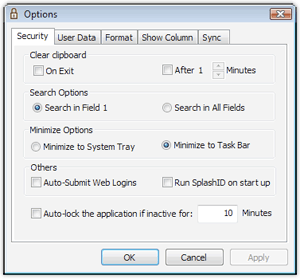 |
- Security
- Clear Clipboard -- Instruct SplashID
to clear copied text from your system's clipboard either
on exit or after a specified number of minutes.
- Run SplashID on Startup -- Automatically
start SplashID when you log into you system.
- Auto-Submit Web Logins -- Check this
box to automatically submit forms when using the Web
Auto-fill feature.
- Auto lock -- Set the period of inactivity
that must pass before the application locks itself.
- User Data
- Database Location -- Select a Custom
database location, including network locations. Note: You
cannot select a folder that already contains a SplashID
database. See Database Sync if you
wish to share data.
- Default Backup Location -- Change the
location to which the automatic vID backup is saved.
|
- Format
- Font -- Select the Font type, style,
size and color from the fonts on your system.
- Row Color -- Select the color of the
rows in List View, which will also be applied as the background
color in the Panel and Tree Views.
- Show Columns -- Select which field data columns
you would like to display in the List View.
- Sync -- Edits the BlackBerry synchronization settings.
|
Web Auto-Fill
For Web Logins, you can have SplashID launch Safari / Internet Explorer
(only) and automatically fill in the username and password fields for
you. Please take note of the following:
- Record type must be assigned to Web Logins.
- Username and password fields should be filled in.
- URL field must begin with either http://, https:// or www.
Find the correct URL to get to the login screen on the selected website
-- this is often not the homepage.
- This may not work with all sites.
Browser Plugin
With SplashID 5, you have the option of installing a browser plugin
(Safari only on Mac, Internet Explorer only on Windows) that will add
a search box to the address bar. With this you can quickly look up
a Web Login from your SplashID database.
To install the plugin, run the SplashID desktop and select "Plugin
for Safari/Internet Explorer" from the File menu, and select Install.
SplashID will install the plugin for only one user - the active user
in the SplashID desktop at the time of installation. If you need to
change the user for which it is installed, you can do this at any time
by reinstalling the plugin using the same method. To uninstall the
plugin, go to File >Plugin for Safari/Internet Explorer > Uninstall.
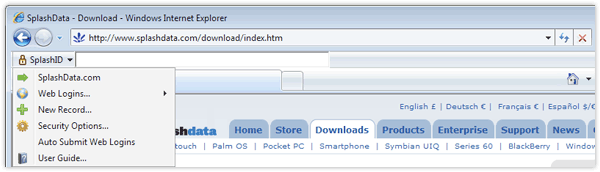
Here is a breakdown on the plugin features:
- Search Box -- Enter some text to search on, like
Amazon, and SplashID will display matches. Click on a match to open
the URL and autofill the username and password.
- Click the SplashID button to access menu options:
- SplashData.com -- Opens our website so you
can explore our software catalog.
- Web Logins -- Select one of your Web Logins
from the list to en the URL and autofill the username and password.
- New Record -- Opens SplashID desktop with
the Edit Dialog open for a new record.
- Security Options -- Set the timeout period
for the browser plugin. When this period expires, you will be
required to reenter your password to use the plugin.
- Auto-Submit Web Logins -- Click this to turn
on the feature that will automatically submit forms when using
the Web Auto-fill feature.
- User Guide -- Access this User Guide.
Database Sync
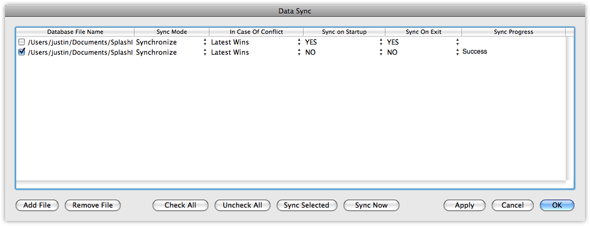
New in SplashID 4, you can synchronize multiple database files manually,
at launch, and/or at exit. This is an advanced feature, not recommended
for beginner users. As always, it is recommended that you backup your
data with a vID export before trying out this feature, so you can revert
if you lose anything. Please Note: You can only sync
with other SplashID 5.x database files.
To synchronize multiple database files:
- Click Add File and select a remote database to sync with. (Your
database does not need to be selected).
- Select the Sync Mode
- Synchronize -- Compares the databases and writes changes
to each.
- Current to Remote -- Overwrites remote data with current user
data.
- Remote to Current -- Overwrites current user data with remote
data.
- Set In Case of Conflict -- Current wins or Remote wins.
- Set Sync on Startup preference.
- Set Sync on Exit preference.
- Check the boxes for the databases you would like to sync.
- Select Sync Selected or Sync Now.
Edit Dialog
Open the Edit dialog for a given record by double-clicking a record.
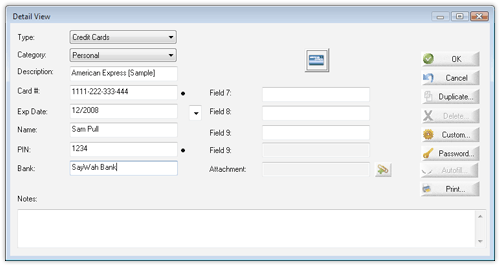
- Type -- Select the Type from the Type menu. The
Type will dictate the default field labels, icons, and masking preferences
for the record. See more about Categories and
Types.
- Category -- In the top right of the Edit View
screen, you can change the Category. It will default to the Category
you were displaying when you created the record. See more about Categories
and Types.
- Fields -- Enter your data according to the field
labels.
- Custom Field Labels -- You may assign Custom
Field Labels by clicking the Custom button.
- Masking -- A bullet appears to the right of any
field that is masked. You may Customize the field masking by clicking
the bullet or selecting Customize Field Labels from the Options Menu.
- Buttons --
- Icon: opens the icon selector. New in version
5, you can add a custom icon to any record.
- Attachment: Attach any file to the record
for future reference. Attached files are saved in a folder next
to the database.
- OK exits the record, saving any changes.
- Cancel exits the record, discarding any changes.
- Duplicate creates a copy of the record.
- Delete deletes the current record, after confirming
that is what you wish to do.
- Custom opens the Custom
Field Label dialog.
- Password opens the Automatic Password Generator
(below).
- Autofill opens the URL and fills in the username and password
if it is a Web Login.
- Print will print the record.
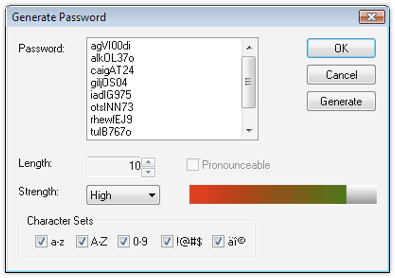
Automatic Password
Generator
To open the Automatic Password Generator, click
the Password button in the Edit Dialog.
To create a password:
- Set the Length.
- Check or Uncheck the pronounceable setting.
- Choose from the Character Sets one or more options of letters,
numbers, symbols, or a combinatory thereof.
- Click Generate. click again until you get a suitable password.
- click OK when you have decided.
|
 |
You may search for records in SplashID by typing in the Find box (press
Command-F to jump there). All fields in all records in SplashID will
be searched and any matching records will appear in the results below.
You may then click an item to go to the Detail View for that item.
Select the contents of the Find box and press backspace to clear the
Find.
You should secure your data in SplashID so that a password must be
entered to access the application. You will be required to enter the
password when launching SplashID. Once you set a password, SplashID
encrypts your data using both AES and Blowfish encryption to ensure
data security.
- Setting a Password -- To set a password, select Set Password
from the File Menu. The Set Password dialog is displayed. Enter a
password in the New Password field, and verify the password by entering
it again in the Confirm field. You will also be asked for a
hint and a hint question. If you have trouble remember your SplashID
master password, you can request the hint from the login dialog.
Then you will be asked your hint question, and if you answer correctly,
the hint will be displayed.
- Entering a Password -- You will be required to enter your
password each time you launch SplashID. You may enter the password
using Graffiti, or with one of the onscreen keyboards. You may toggle
between the alpha-numeric keyboard and the numeric keypad using the
abc/123 button on the top right of the password dialog. The numeric
keypad is suitable for entering a numeric password without a stylus,
using your fingers.
- Changing a Password -- To change a password, select Set
Password from the File Menu, enter your Old Password, then enter
and confirm the New Password.
- Removing a Password -- To remove a password, select Set
Password from the File Menu, enter your Old Password, then leave
the New Password and Confirm fields blank.
Auto-Lock -- Check Choose Auto-Lock in the Options > Security
dialog to specify the period of inactivity that must elapse before
SplashID auto-locks. Once SplashID locks, you must enter your password
to open SplashID.
USB Sync
To synchronize SplashID with your USB cable, connect your device to
the computer, and then do the following:
- Open the BlackBerry Desktop Manager and click on the Sync icon.
- Click on Add-Ins and you should see SplashID listed. Check the
box to enable it.
- Click on Synchronize, and check the box for Run add-in actions.
- Click the Synchronize button to perform a sync.
- By default information is synchronized in both directions, but
you can adjust the settings, in Sync settings which can be found
in the Options/Preferences dialog.
Wi-Fi Sync
Items may be created or edited on the Handheld or Desktop and the
changes can be synchronized over your local Wi-Fi network. This is
only possible if:
- your BlackBerry has Wi-Fi and it is turned on
- your BlackBerry has joined the same Wi-Fi network as your computer
By default information is synchronized in both directions, but you
can adjust the settings, in Sync settings which can be found in the Options/Preferences dialog.
In most cases, you will wish to leave the Default setting (on the
right) set to Synchronize. This means that after changing it to Desktop
Overwrites Handheld and doing a sync, it will revert back to Synchronize
for the next sync so you don't have to go back in and change the setting
back manually.
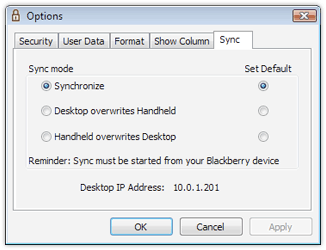 |
Here are the possible sync settings and the results they will
bring about:
- Synchronize -- Changes made on the Handheld or the
Desktop will be synchronized. If a record is edited on both
sides between syncs, both versions of the record will be kept
so you can manually compare which one you want to keep.
- Desktop overwrites handheld -- All data on the Desktop
is copied to the handheld. Any data on the Handheld will be
replaced.
- Handheld overwrites Desktop -- All data on the Handheld
is copied to the Desktop. Any data on the Desktop will be replaced.
|
In order to synchronize, you must do the following:
- Select the same network that your computer is on for your handheld
to join
- Open the SplashID desktop
- Select the correct user from the User menu in the SplashID desktop
to match the device name
- Set the passwords the same on both the desktop and handheld software
- Adjust the BlackBerry Sync settings in Options > Sync if you
wish
- Start the Sync on the handheld:
1. Press the BlackBerry Menu button and select Synchronize |
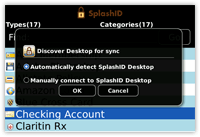
2. Use automatic discover or enter an IP
address to sync with |
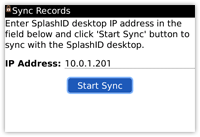
3. Click "Start Sync" |
If your desktop computer cannot be discovered, start over
and enter the IP address manually. You can easily find the desktop
IP address in the SplashID desktop > Options > Sync.
Creating an Ad Hoc Network
If you have trouble connecting your handheld and desktop SplashID,
or if you want to make your sync connection with the handheld more
private, you can set up an Ad hoc network (aka Computer-to-Computer
network), and then perform your sync with both devices on that network.
Here's how:
Mac OS
- Click the Airport icon in the menu bar, and select Create Network.
- Select options for the network such as name and if you wish to
password protect it.
- On the handheld, join the new network from the list in Settings
> Wi-Fi.
- Now open SplashID on both the handheld and desktop and proceed
with the Synchronization.
Windows Vista
- Open Connect to a Network by clicking the Start button , and then
clicking Connect to
- Click Set up a connection or network.
- Click Set up an ad hoc (computer-to-computer) network, click Next,
and then follow the steps in the wizard.
- On the handheld, join the new network from the list in Settings
> Wi-Fi.
- Now open SplashID on both the handheld and desktop and proceed
with the Synchronization.
This Vista setup information was gathered from
this documentation Here you can find information on setting
up an Ad hoc Network in Windows XP.
You can share information with other SplashID Desktop users by exporting
and importing your SplashID records. Records can be exported/imported
on the desktop in several formats:
SplashID vID
You may import and export SplashID records in SplashID Virtual ID
(vID) format, which allows you to export and import records in
a secure, encrypted format. vID files may be encrypted by assigning
a password when exporting. The recipient of the vID file may import
the data into their copy of SplashID Desktop by double-clicking
the file, or choosing Import/SplashID vID from the File Menu. If
a password was assigned to the file, the recipient must enter the
password in order to import the data.
You have the option of exporting a version 5 or version 4 vID file.
This helps with backwards compatibility. Since version 5 databases
may contain attached files, these will not be supported by version
4. When you choose version 4 as the vID export version, attached
files will be discarded.
vID files are a convenient way to share records with a coworker
or spouse by exporting a vID file, assigning a password (optional),
and then emailing the resulting vID file to the recipient. You can
even use the vID format as a backup mechanism by periodically exporting
a vID file and archiving it on a backup disk.
You can also use the Email button on the SplashID desktop to export
vID files and attach them to a new email message.
CSV
You may also import and export SplashID records in CSV format. CSV
stands for Comma Separated Values, and is a common file format
readable by most spreadsheets, databases and word processors. If
you wish to import a CSV file, the data must be in the following
format:
Type,Field 1,Field 2,Field 3,Field 4,Field 5,Field 6,Field 7,Field
8,Field 9,Date Modified: "Month DD,YYYY",Notes,Category
It is easy to create the above format in Excel by creating a spreadsheet
with 13 columns (as designated above) with one record per row. Then
save the file in CSV format.
Note: When importing data, if the type field is blank the record
will be placed in Unfiled. If there is a type name and it does not
match an existing type a new type will be created.
Automatic vID Backups
SplashID Desktop has an automatic backup feature which will allow
you to easily recover data in most cases. Whenever the data has been
changed, a backup is made each time you exit SplashID Desktop. A vID
export file is created (and encrypted with the same password you are
using in SplashID) and stored in:
- Mac OS: ~/Documents/SplashID/Backup/SplashID-BlackBerry_DevicePIN.vid
- Windows: ~/Documents/SplashData/SplashID/Backup/<Device
PIN>.vid
If you later need to restore this data, simply double-click the .vid
file and you will be prompted for a password and the data will be imported
into SplashID Desktop.
You may change the location that this file is backed up to in SplashID
Desktop Options.
Manual vID Backups
You may also perform a manual backup of your data by selecting
Backup from the File menu. This will export your SplashID Database
in vID format to whatever location you select. You will be given the
option to set a password as well, which will encrypt the data and require
the password to restore it.
Restore
Select Restore from the File menu to restore a vID file that has
been backed up either automatically or manually as described above.
The password will remain the same for the application even if the password
for the backup file was different.
Desktop
The SplashID Desktop database file is automatically saved to the
SplashID directory on your hard drive each time you exit the application.
You may back up this file as an added precaution in case of a hard
drive failure. To restore the backup file simply copy it into the SplashID
directory. Then the next time you launch SplashID it will open the
file. This file is stored here:
- Mac OS: ~/Documents/SplashID/<Device
PIN>/
- Windows: ~/Documents/SplashData/SplashID/<Device
PIN>/
You may change the location that this file is saved to in SplashID
desktop Options.
Handheld
Each time you use the Backup tool in the BlackBerry Desktop Manager,
the SplashID database file on the handheld is backed up along with
the rest of the device data. In the event of a failure, this data can
be restored via the Restore option in the BlackBerry Desktop Manager.
|